Agent access & MCP
MCP lets an approved AI tool use selected Mockflow information. You decide which diagrams it can reach, what it may read, whether it may edit, and when its access ends.
What MCP means in Mockflow
An Agent Access Key connects one approved MCP client to Mockflow. A client might be Codex, Claude Code, Visual Studio Code, or MCP Inspector. The key is limited to the workspace information you choose. It does not give the client your normal browser session.
Keys are read-only by default. A read-only client can see basic details about a selected diagram, such as its title and status. It can read the saved architecture, scenarios, run evidence, and other approved material only after the diagram has a checkpoint. It cannot read or change the working draft.
MCP clients cannot approve work, publish a run, create a share link, download an export, or manage the workspace. Those decisions stay in the signed-in Mockflow application.
Create an Agent Access Key
- Open your account menu, choose Settings, then open Agent Access Keys.
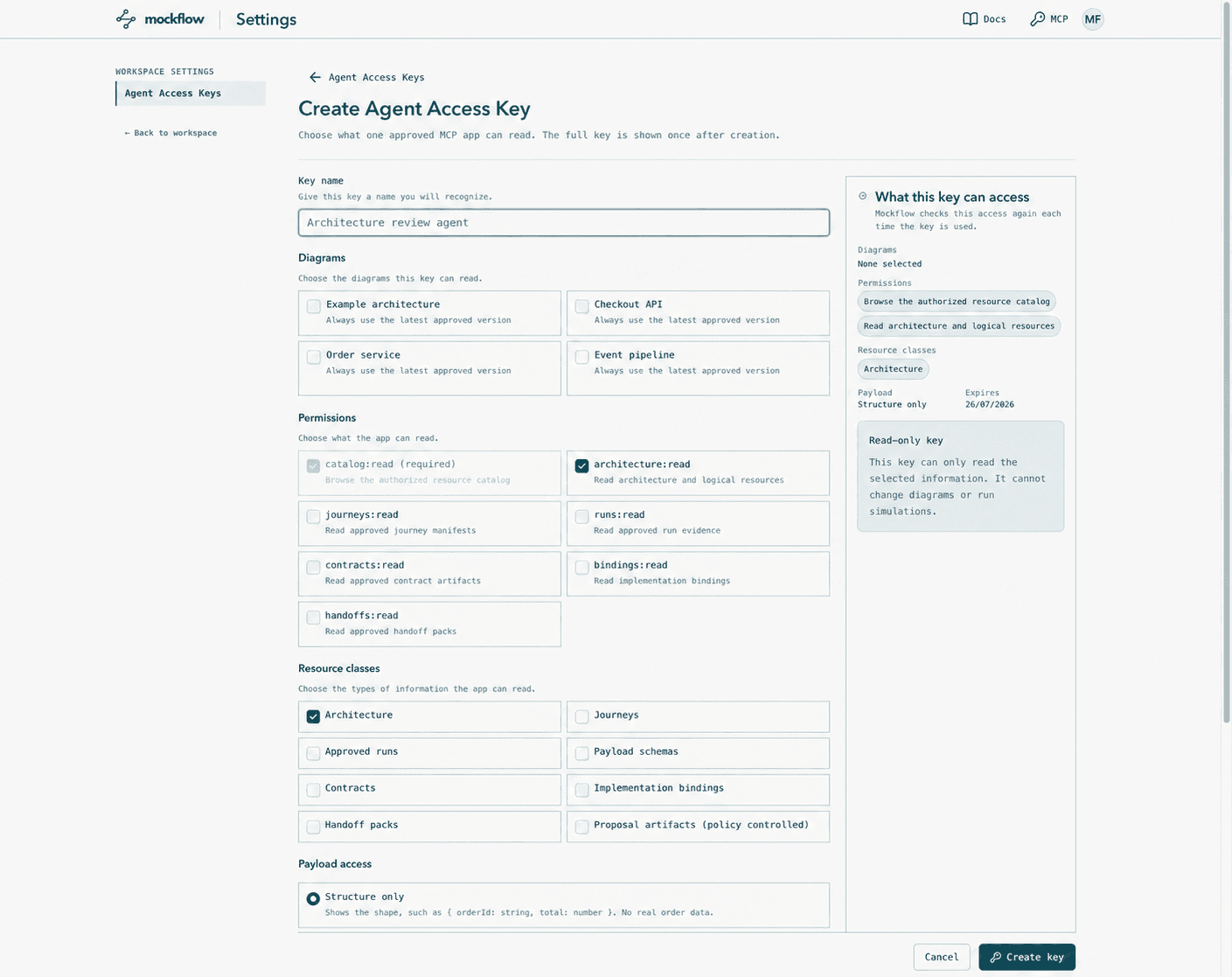
- Select Create Agent Access Key and give it a name that identifies the client and purpose.
- Choose only the diagrams and kinds of information needed for the task. Start with structure only unless the client genuinely needs approved examples or real values.
- Keep the key read-only unless the client must change a draft. Write-capable keys need extra confirmation and expire within 14 days.
- Create the key and copy it into the client's secure secret setting. The plaintext key is shown once.
Use a separate key for each client or task. If a key is lost, rotate it. If it may have been exposed, revoke it immediately.
Connect the client
Use the Mockflow MCP server address and store the key in the secure credential feature provided by your client. Never put the plaintext key in a repository, project file, URL, screenshot, ticket, or chat.
Connection details
Server: https://mockflow.app/mcp/v2
Credential: Bearer <Agent Access Key>
Supported client matrix
The table lists the client versions Mockflow has tested. A newer client may also work, but use a tested range when predictable setup is important.
| Client | Tested version | Supported range | Transport |
|---|---|---|---|
| MCP Inspector | 0.21.2 | >=0.21.2 <1 | Streamable HTTP |
| Claude Code | 2.1.215 | >=2.1.177 <3 | Streamable HTTP |
| Visual Studio Code | 1.127.0 | >=1.107 <2 | Streamable HTTP |
| Codex | 0.145.0-alpha.18 | 0.145.0-alpha.18 | Streamable HTTP |
Configure a supported client
Choose your client below and follow its steps. The examples use a placeholder for the key so the secret does not end up in copied project files.
MCP Inspector
Tested 0.21.2 · supported >=0.21.2 <1
- Create a structure-only key for the diagrams you want to inspect.
- Load the key from your approved secret store into MOCKFLOW_AGENT_ACCESS_KEY.
- Launch Inspector in HTTP CLI mode with the Authorization header below.
- Initialize, list resources, and read the authorized catalog before testing pagination.
# Load MOCKFLOW_AGENT_ACCESS_KEY from your approved secret store.
npx @modelcontextprotocol/inspector@0.21.2 \
  --cli "https://mockflow.app/mcp/v2" \
  --transport http \
  --header "Authorization: Bearer ${MOCKFLOW_AGENT_ACCESS_KEY}"
Use the CLI Authorization header. Do not place the key in the endpoint URL or commit the shell values.
Claude Code
Tested 2.1.215 · supported >=2.1.177 <3
- Create a read-only key by default; after the production write gate is accepted, opt into write scopes only when the task must change a selected draft.
- Put the key in the environment or an approved local secret store.
- Add the HTTP server entry to the local Claude Code MCP configuration.
- Restart the client if required, then verify resources; tools should appear only for an eligible write grant after the production gate is accepted.
{
  "mcpServers": {
    "mockflow": {
      "type": "http",
      "url": "https://mockflow.app/mcp/v2",
      "headers": {
        "Authorization": "Bearer ${MOCKFLOW_AGENT_ACCESS_KEY}"
      }
    }
  }
}
Keep this configuration local. Never replace the environment placeholders with a key in a tracked repository file.
Visual Studio Code
Tested 1.127.0 · supported >=1.107 <2
- Create the smallest useful key and copy its one-time value into a password prompt, not the workspace file.
- Add the HTTP server and password input to your user or approved local MCP configuration.
- Enter the key in the password input when prompted.
- Start the server and verify resource list/read before relying on it for an agent task.
{
  "servers": {
    "mockflow": {
      "type": "http",
      "url": "https://mockflow.app/mcp/v2",
      "headers": {
        "Authorization": "Bearer ${input:mockflow-agent-access-key}"
      }
    }
  },
  "inputs": [
    {
      "type": "promptString",
      "id": "mockflow-agent-access-key",
      "description": "Mockflow agent access key",
      "password": true
    }
  ]
}
The key input must remain a password prompt. Do not put the plaintext key directly in mcp.json or workspace settings.
Codex
Tested 0.145.0-alpha.18 · supported 0.145.0-alpha.18
- Create a read-only key by default for the diagrams Codex needs; use a separate short-lived key for authoring.
- Load the key from your approved secret store into MOCKFLOW_AGENT_ACCESS_KEY.
- Run the command below to add Mockflow to Codex.
- Restart Codex, then check that Mockflow resources are available.
# Load MOCKFLOW_AGENT_ACCESS_KEY from your approved secret store.
codex mcp add mockflow \
  --url "https://mockflow.app/mcp/v2" \
  --bearer-token-env-var "MOCKFLOW_AGENT_ACCESS_KEY"
This adds a shared server entry. Each Codex client must receive MOCKFLOW_AGENT_ACCESS_KEY from its own launch environment.
Choose the smallest useful access
Select the fewest diagrams and information types that let the client complete its task. Structure-only access is enough for understanding components and connections. Approved examples are useful for explaining a known case. Real stored values should be used only when an owner has confirmed that the client is allowed to see them.
A read-only key can follow the newest checkpoint or stay fixed to one particular checkpoint. Follow the newest checkpoint when the client should see later reviewed changes. Fix the key to one checkpoint when a review must keep using exactly the same saved version.
Checkpoints and MCP access
A checkpoint is the boundary between working privately in a draft and making a stable version available to read-only MCP access. Creating a diagram does not create a checkpoint automatically.
| Access | Before the first checkpoint | After a checkpoint |
|---|---|---|
| Read-only key | Can see basic catalog details, such as the diagram title and status. It cannot read the architecture or scenarios. | Can read the saved content allowed by the key. It still cannot read the working draft. |
| Write-capable key | Can read and edit the permitted working draft. A checkpoint is not required for draft access. | Can continue working with the permitted draft. The checkpoint remains a stable point for comparison and recovery. |
If you want an agent to understand a diagram without changing it, create a checkpoint first and use a read-only key.
Optional guarded editing
Guarded editing may be available in your Mockflow environment. It is off by default and needs three separate choices: a short-lived key with the right editing access, selected diagrams, and the workspace switch that allows MCP draft changes.
With write access, a client can author a complete new diagram from your description or update a permitted draft. It can add and arrange components, connect them, describe scenarios, and fill in supporting diagram information. It can read the current working draft even when the diagram has no checkpoint. Mockflow still checks every proposed change and rejects work that no longer matches the latest saved draft.
Some environments can also allow a permitted client to run a scenario for temporary debugging. Creating or changing a draft does not approve or publish it.
A client can validate the exact saved graph using its current draft marker, without downloading and sending the full document back. Validation errors identify all bounded input problems by public field path, so missing, unknown, or mistyped fields can be corrected in one pass.
Keep a checkpoint before agent-led editing, review the result in the application, then remove write access when the task is finished.
Example prompts
Tell the client what you want the system to do, which important parts or failure routes to include, and whether it should create a new diagram or improve an existing one. Ask it to keep the result as a draft and explain its changes so you can review them in Mockflow.
Author a complete system diagram
“Create a complete Mockflow diagram for an online checkout system. Include a web client, API gateway, order service, payment service, inventory service, database, and message queue. Connect them into a clear request path. Add one successful checkout scenario and one payment-failure scenario.”
Explain a codebase or monorepo
“Study this codebase or monorepo and create a complete Mockflow diagram that explains how data moves through it. Identify the user-facing entry points, applications, services, background workers, APIs, queues, databases, external systems, and important boundaries you can find. Follow several meaningful user journeys from start to finish and add each journey as a scenario, including at least one important failure route. Base the diagram on evidence in the code, clearly note anything uncertain.”
Turn a description into a runnable design
“Build a new diagram for a file-processing service. A user uploads a file, an API stores it, a queue starts background processing, and a worker saves the result. Include the important failure routes, such as an unavailable store and a failed worker. Add scenarios that show the normal route and a retry. Explain the finished diagram in simple English.”
Improve an existing diagram
“Review the selected order-processing diagram. Add any missing queue, retry, timeout, or dead-letter routes needed to make the failure behavior clear. Update the draft only, preserve parts that are already correct, and summarize every change for my review.”
Create a design from requirements
“Create a complete diagram from these requirements: customers place orders, stock is reserved, payment is collected, and confirmation is sent. If payment fails, release the stock. If confirmation fails, retry it without charging again. Choose suitable Mockflow components, connect them, add the main scenarios”
You do not need to name every component. Describe the people, systems, steps, and failures that matter. The client can propose a complete diagram, and you can refine it after reviewing the draft.
Rotate, narrow, or revoke access
Settings shows active, expired, and revoked keys. You can make a key read-only, narrow what it can reach, rotate it to issue a replacement, or revoke it completely. Revocation stops the next request and cannot be undone.
Errors and troubleshooting
| What you see | What to check |
|---|---|
| The client says the key is invalid | Check that the whole one-time key was copied, that it has not expired or been revoked, and that the client sends it as a Bearer credential. |
| No diagrams appear | Open Settings and confirm that the key includes the diagram and permission you intended. Also check that the diagram is active or archived, rather than in the trash. |
| The diagram appears, but its contents are unavailable | A read-only key can see basic diagram details before the first checkpoint, but it cannot read the architecture or scenarios. Create a checkpoint, then ask the client to try again. |
| The client can read but cannot edit | Read-only is the normal default. Editing also needs an eligible short-lived key, the selected diagram, the workspace write switch, and an environment where guarded MCP writing is available. |
| A change is rejected because the draft changed | Someone else saved newer work. Ask the client to read the latest draft, reapply its intended change, and try again. Do not replace the newer work blindly. |
| The client needs to check the saved graph | It can call validate_graph with the diagram reference and current draft marker. It does not need to download and resubmit the whole graph. If the marker is stale, it must read the latest draft first. |
| A tool call reports several invalid fields | Read every path in the bounded diagnostics list. Mockflow distinguishes missing, unknown, mistyped, invalid-value, and unmatched-shape fields so the client can repair them together before retrying. |
| A scenario start port reference is unavailable | Scenario tools require the current mfref2 port reference returned by a graph read. Semantic aliases such as service.requestOut are only accepted by graph-authoring tools; the diagnostic identifies the exact scenario field to replace. |
| Two reads return different-looking draft markers | Draft markers are protected, opaque values and may look different for the same saved draft. A read does not change the draft. Let the client pass the returned marker to its next write; it must not interpret or compare the text. |
| A new diagram contains a blocked Default scenario | Every new diagram includes a placeholder scenario. It remains blocked until a start component and start port are selected; update it or create another runnable scenario. |
| The client cannot connect | Use one of the supported client configurations below. Check the server address, secure key setting, and HTTP transport, then restart the client if it requires a restart. |
| The server address returns Not Found | Use the exact https://mockflow.app/mcp/v2 address. The older /mcp/v1 route is retired by default and returns 404 unless an operator has temporarily enabled it for migration. |
| The client shows old tools or rejects a current field | Reconnect or restart the client after a Mockflow upgrade so it initializes /mcp/v2 again and fetches a fresh tools/list. A mcp.input.schema_stale handler-operation error means the connected client still has the retired schema. Mockflow does not reinterpret it or send live tool-list change notifications. |
| A request is rejected after protocol initialization | Use the protocol version returned by initialization in later MCP-Protocol-Version headers. Mockflow currently returns 2025-11-25 even when a supported older client proposes an earlier version. |
For support, share the time of the problem and the safe key label or public ID. Never share the key itself, request data, or a client log that contains private values.
Continue learning
Read Scenarios and Runs & events to understand the system story an approved client may be allowed to read.